
Blog
How to Connect Lovense Toys to MyFreeCams?

We use affiliate links and may receive a small commission on purchases.
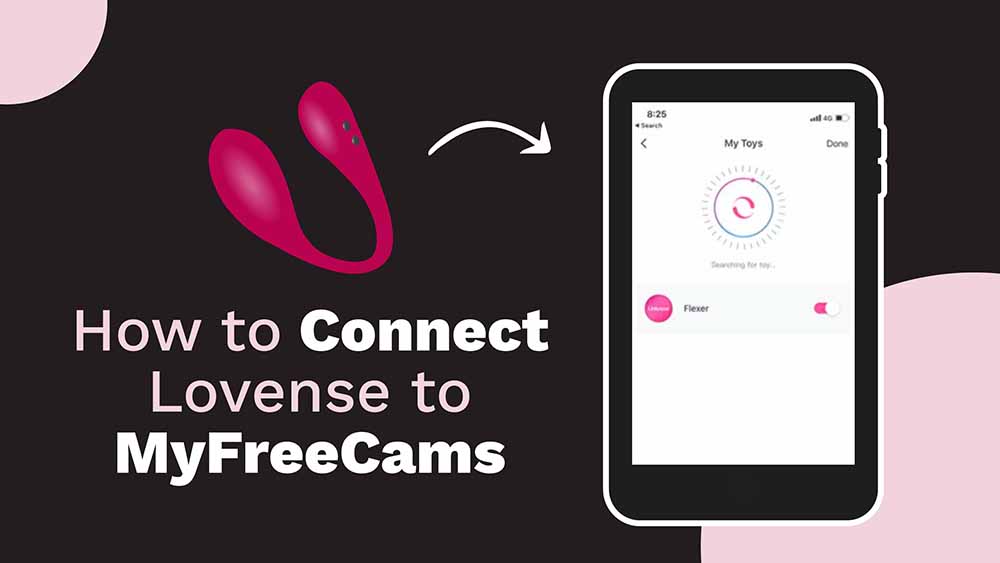
If you are an adult content creator on MyFreeCams, you are probably already aware that audiences are very excited about any chance to interact with their favorite creators. Lovense toys let you offer these opportunities to your viewers without divulging any personal information or even leaving your studio. You don’t need a full tech support team, either. Read on to learn (and earn) more!
Key Takeaways
You’ll start by downloading and installing the Lovense Connect app (PC users will also need a Lovense USB Bluetooth adapter). Turn on the toy and connect it to the app. Then download, extract, and install the Lovense Cam Extension. Log in and follow the setup wizard. Then sync your Lovense Connect app to the browser extension and add MyFreeCams — you’re ready to stream!
Interactive Features on MyFreeCams
MyFreeCams is a popular site for adult content creators who do livestreams. The site allows you to connect with your viewers safely and securely, which increases engagement and therefore revenue. MyFreeCams also offers full-featured mobile streaming, which means that you can broadcast from your phone or tablet.
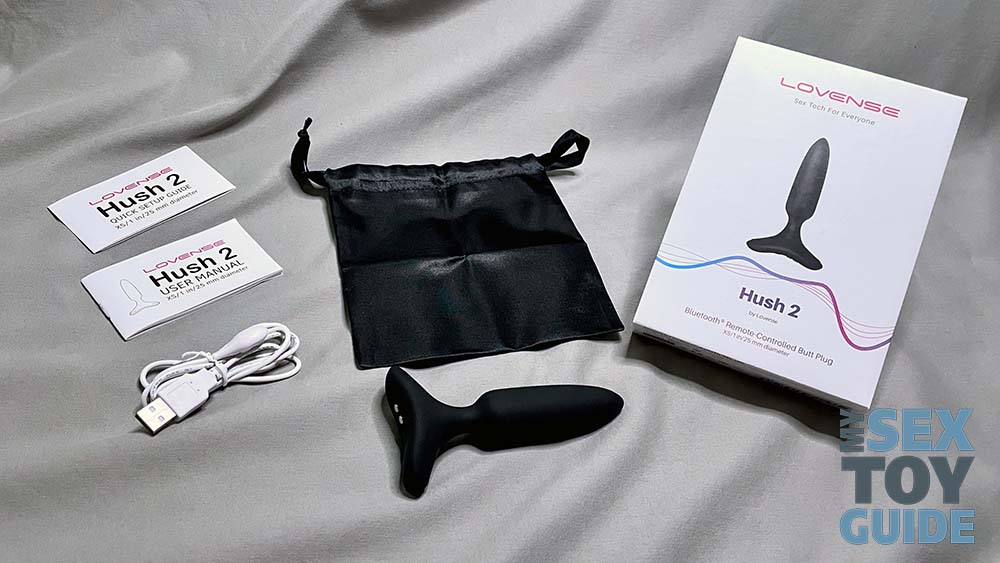
One of the most in-demand features is the ability for you *and* your viewers to use interactive sex toys when you are streaming. You can allow select viewers to control your device from their own computer or mobile device. It creates an intimate, interactive, immersive experience for the lucky viewer, and this can be a reward for a generous tip or an incentive to drive engagement or subscriptions.
Interactive toys that are compatible with MyFreeCams include the Lovense Lush 4, Hush 2, and most other Lovense toys. These toys are designed to work with MyFreeCams and other cam model sites such as Camsoda and BongaCams. It is easy to link your Lovense accounts with accounts on the cam sites, and once you have connected your sex toy(s), you can incorporate them into your streams.
Install the Lovense Connect App
You will need to have both a Lovense account and a MyFreeCams account. If you are not yet registered on both sites, you should do that before you start the installation process.
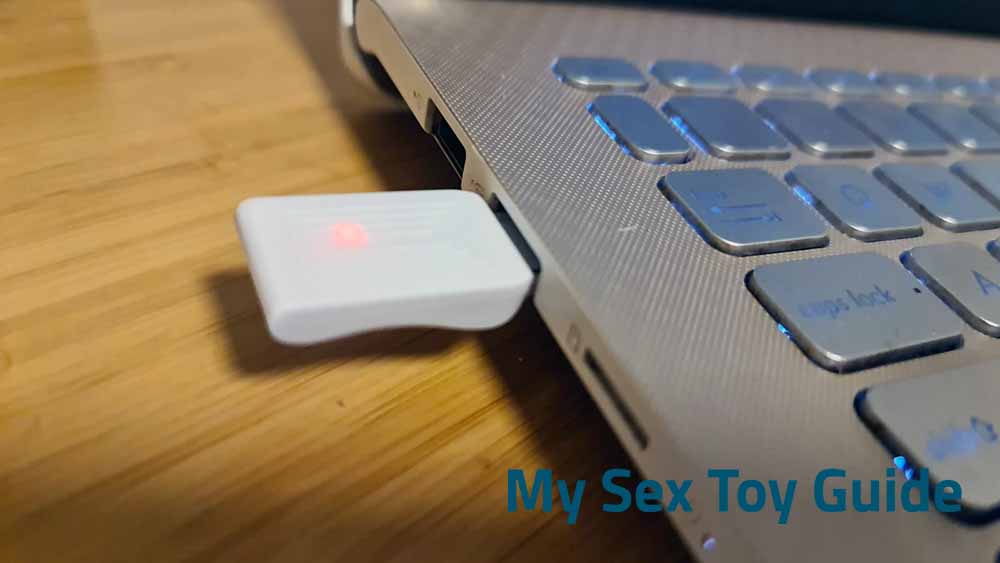
1. If you are on a PC, you will need to have a Lovense USB Bluetooth adapter (image below), which costs $5 on the Lovense website. Mac users do not need this adapter.
2. Go to the official Lovense website (you may be able to find this elsewhere, but the official site is the safest and most up-to-date source) and download the Lovense Connect app.
3. Double-click the downloaded installation bundle and follow the prompts to install the app. When it is installed and the Lovense Connect icon appears, double-click the icon to launch the app. You will see the prompt below to pair your toy(s).
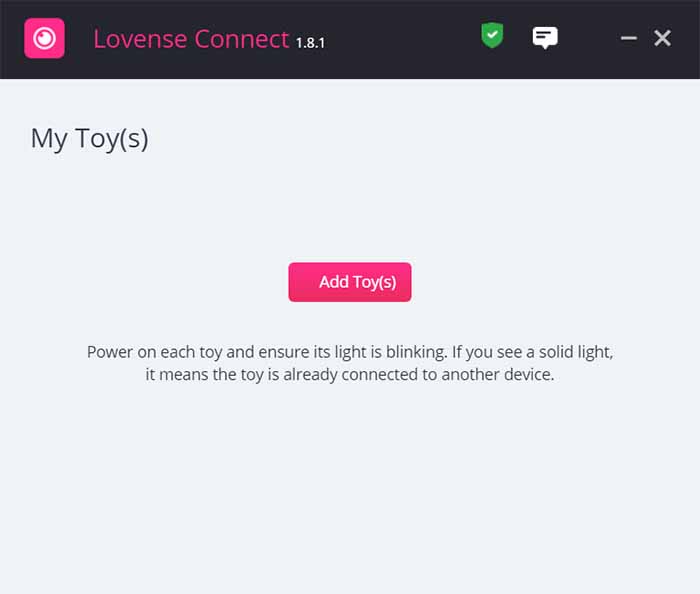
4. Turn on your Lovense toy and enter pairing mode by holding the power button for three seconds. The light will blink red as shown below to indicate that it is now in pairing mode.
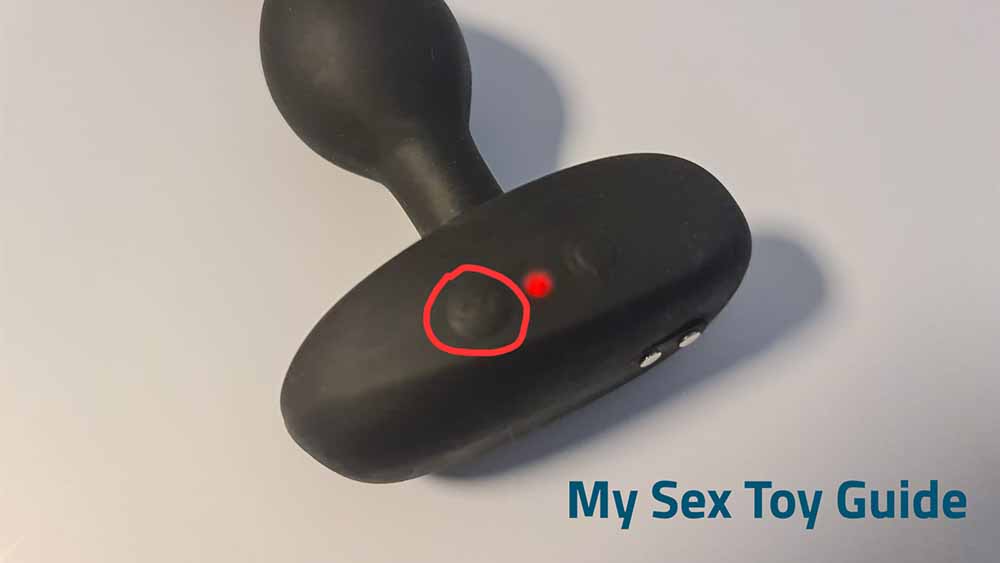
5. Return to the Lovense Connect app and click “Add Toy(s)”. The app will look for your toy and attempt to connect. The interface will look like below when the connection is successful.
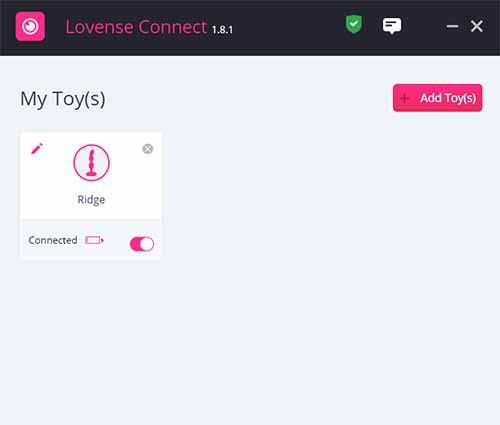
Install Lovense Cam Extension
1. Download the Lovense Cam Extension from the official Lovense website. It will be a .zip file in your download folder.
2. Open the .zip file. If your system does not automatically unpack it (most do these days), you can use a free utility such as WinRAR to extract the files.
3. Install the extension. It works best in Chrome and our instructions and screenshots are from Chrome, but the process is similar for every browser. Click the three dots in the upper right corner, and then select Extensions > Manage Extensions.
4. Toggle the switch in the upper right corner to enable Developer Mode.
5. Click “Load Unpacked” on the left side and select the “lovense_cam_3098” folder to install the extension. You can now turn off Developer Mode by toggling the switch again.
6. Log in by clicking the extension icon on the top right of your browser to enter your Lovense username and password. You can pin the extension so that you can find it easily whenever you need it.
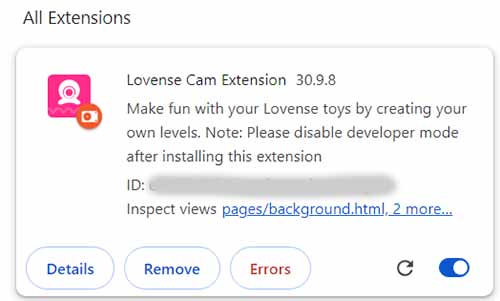
Sync Lovense Connect App to Browser Extension
1. Log in to the browser extension with your Lovense user name and password.
2. Go to Settings and select “Connect by PC” on the right-hand side. If you have successfully paired your toy, the extension will automatically detect it and add it to the list.
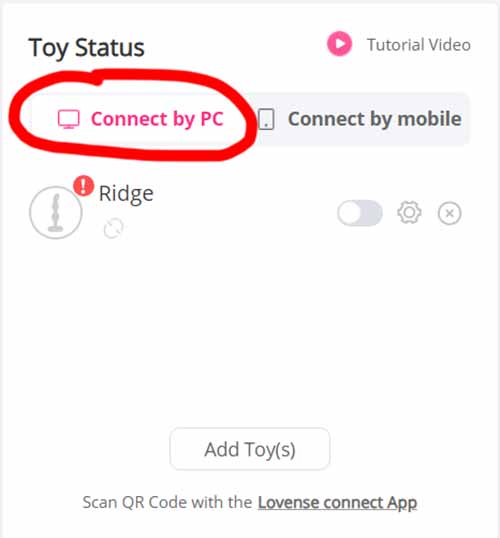
3. On the Cam Extension screen, select “Add A New Cam Site” at the bottom of the screen.
4. Select MyFreeCams from the drop-down list.
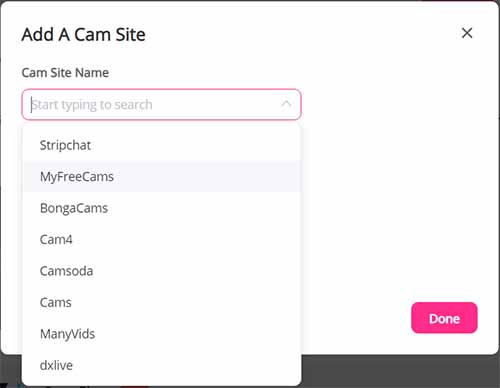
5. We recommend that you select “Use Lovense Recommended Settings,” at least at first, but if you are comfortable with it, you can tweak the settings according to your preferences.
6. Click the “Stream” button and log in to your MyFreeCams account. You’re ready to stream!
Troubleshooting Common Issues
Bluetooth Connectivity Issues: One of the most common issues with Lovense toys is Bluetooth connectivity. If your toy is not connecting to your phone or computer, try the following:
- Make sure that your device is fully charged and turned on.
- Make sure that your Bluetooth connection is active and that your device is within range (Bluetooth range is about 30 feet under ideal conditions, but can be considerably smaller if electronic or physical interference is at play).
- If you are using the USB Bluetooth adapter with a PC, make sure the adapter is securely plugged in and the red light is blinking.
- Reset the Lovense toy by pressing and holding the power button for ten seconds.
If none of these suggestions help, check the user manuals/guides and the Lovense website and forums. You can also reach out directly to Lovense for assistance and technical support.
Connection Issues with MyFreeCams
If you are unable to connect the Lovense extension to MyFreeCams:
- Verify that you have the latest version of the Lovense extension installed on your browser.
- Make sure that you have enabled Lovense in your settings on MyFreeCams.
- Clear your browser cache and cookies.
If you are still unable to connect, check the Wiki on the MyFreeCams site or reach out for assistance.
Happy vibing!
Tim

Reddit | Medium | Amazon
Related Posts


The Best Sex Toys & Wellness Guide for Aging & Menopause
-
Posted by
mediamillion1000@gmail.com


Oh Joy Sex Toy – West Oz Leather: West Connect by Hien Pham
-
Posted by
