
Blog
How to Connect Lovense Toys to BongaCam? Step-by-Step Guide

We use affiliate links and may receive a small commission on purchases.
If you are a live-streamer on BongaCams, interacting with your viewers increases engagement and revenue. When you use toys on your streams, you can invite selected viewers to control those toys or even pair their toys with yours. BongaCams supports the Lovense sex toy ecosystem. We’ll walk you through setting up and syncing your sex toys, and you can take your streams to the next level.
Key Takeaways
You’ll start by installing the Lovense Connect app on your computer, and then connecting your compatible Lovense sex toys. Then download, unzip, and load the Lovense Cam Extension. Connect the Connect app and the extension, and add BongaCams as a new cam site. You’re ready to stream!
All About BongaCams
If you’re not already familiar with BongaCams, it’s a streaming platform based in the Netherlands and it’s one of the largest adult sites globally (it was the 37th most popular site in the world in 2021). Viewers can purchase tokens to enjoy upgraded features or give tips to cam models. BongaCams accepts cryptocurrency, so they have viewers all over the world.
BongaCams is widely recognized as a leader in this industry: XBIZ Cam Company of the Year, YNOT Best Webcam Company of the Year and Best Freemium Site, LALEXPO Best Tipping Cam Site, AW Freemium Cam Site of the Year and Best Internet Brand, Live Cam Awards Best Overall Live Cam Site, Adult Webcam Awards Best Credit or Tokens Cam Site, and many other awards.
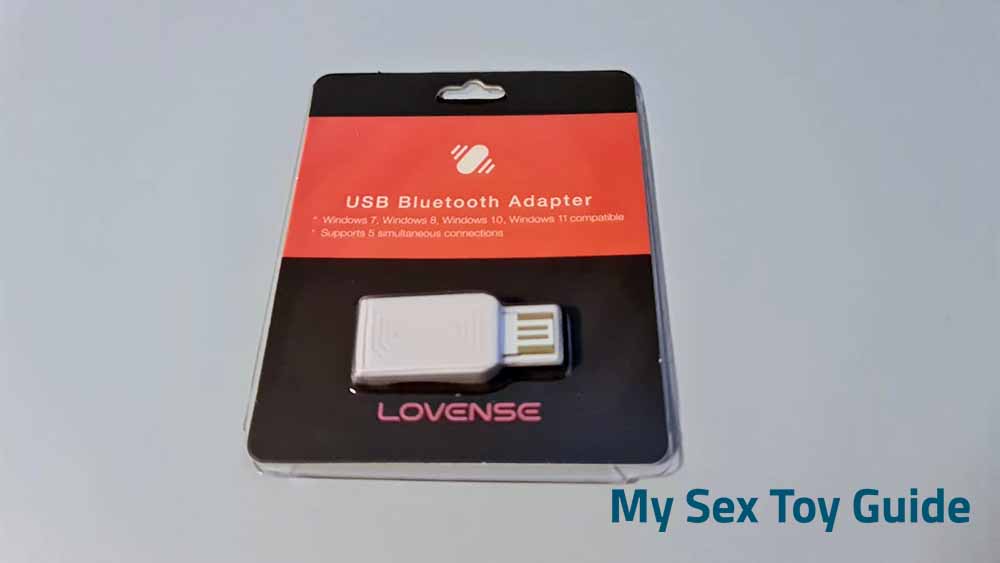
Let’s get started! You will need to have a Lovense account and an account on BongaCams. If you will be connecting on a PC, you will need a USB Bluetooth adapter, which you can purchase directly from Lovense for $5. Mac computer users do not need this extension.
Installing the Lovense Connect App
1. Download the Lovense Connect app from the Lovense website. Downloading from the official site ensures that you are getting the most up-to-date version and that the files are not compromised.
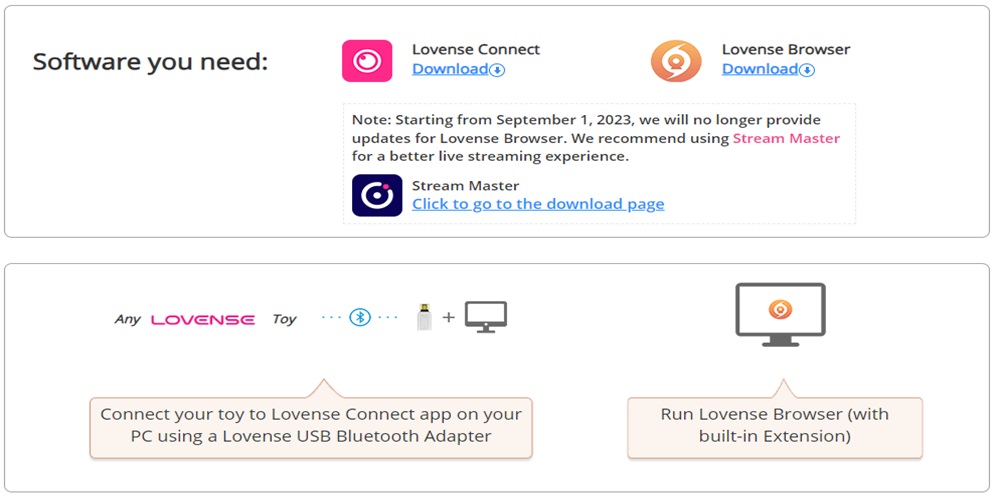
2. Find the downloaded bundle, double-click on it, and follow the prompts to install it.
Connecting Your Lovense Toy to the Connect App
1. Open the Lovense Connect app by double-clicking on the icon that should have appeared when you installed the app.
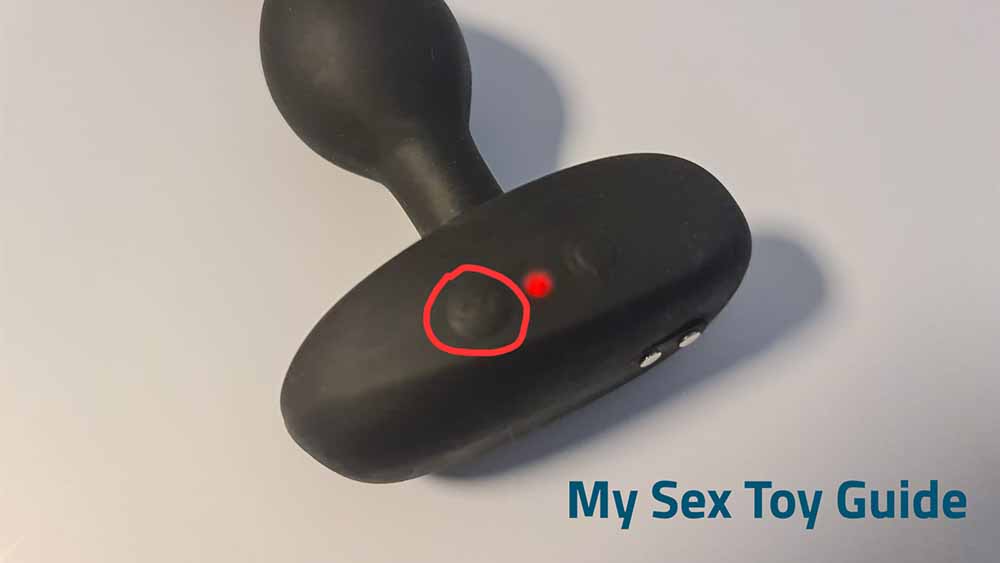
2. Turn on your Lovense toy. Press and hold the power button for three seconds until the light blinks red to indicate that it is now in pairing mode. You can pair multiple toys at the same time.
3. In the Connect app, click the “Add Toy(s)” button and it will search for your toy to connect. The app interface will show when it connects with your toy.
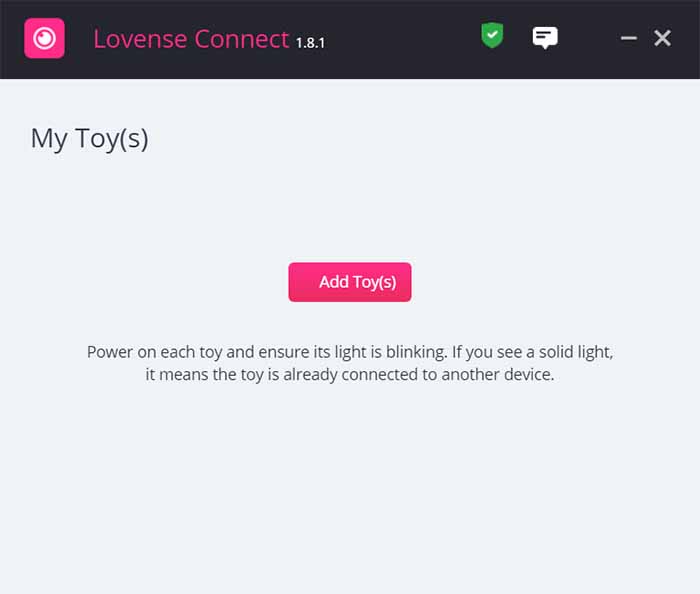
Pro tip: If the toy does not seem to connect, try turning it off and then turning it back on again and putting it in pairing mode (press and hold the power button until the red light comes on). You can also try closing and reopening the Connect app.
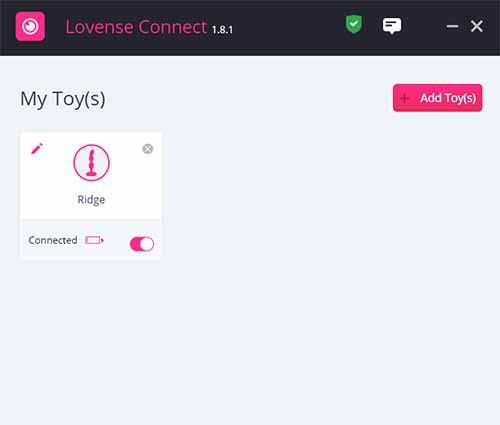
Setting Up and Connecting to the Browser Extension
- Download the Lovense Cam Extension, which will arrive as a .zipped package. You can use a free utility such as WinRAR to unpack it if your system does not automatically unzip it when you click on it (most do).
- Locate the folder named “lovense_cam_3098.” Open your browser (it works best with Chrome and our screenshots are in Chrome, but the process is the same with almost all popular browsers) and click the three dots in the upper right corner to open the menu. Select Extensions > Manage Extensions.
- Enable Developer mode by toggling the button in the upper right corner (it will turn blue). Select “Load unpacked” on the left-hand side and choose the “lovense_cam_3098” folder. This installs the extension and you should be able to see it in the menu of extensions. We recommend that you disable Developer mode by toggling the switch back to grey. You can pin the extension for easier access.
- Use your Lovense user name and password to log in to the browser extension. Select Settings and then “Connect by PC” on the right-hand side. This will sync with the Connect app, which will also automatically detect your toy and add it to the list.
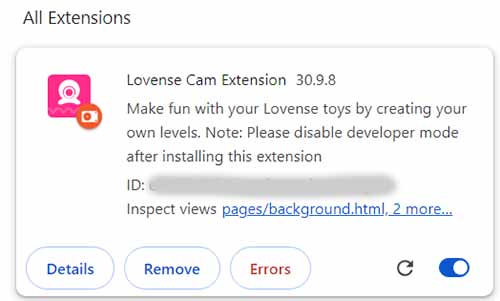
Connecting the Lovense Cam Extension to BongaCams
- At the bottom of the Cam Extension screen, select “Add A New Cam Site.”
- Select BongaCams from the drop-down list.
- We recommend that you select “Use Lovense Recommended Settings,” unless you are comfortable configuring settings and menus. (We still recommend using the recommended settings at first and then tweaking after you have played around a bit.)
- Click the “Stream” button and use your BongaCams username and password to log into the BongaCams site.
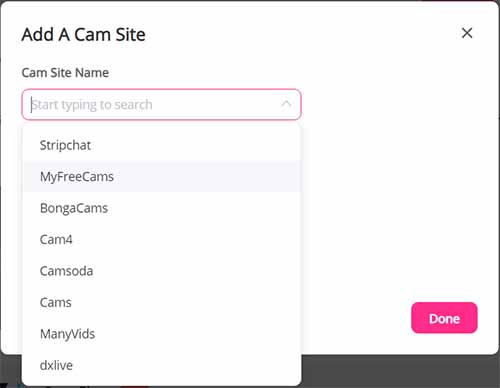
Troubleshooting Common Issues
- Internet: You’re not going to be able to connect, sync, or stream unless your internet connection is both fast and stable. You can run an internet speed test to check your connection. If you’re not getting what you should be, try rebooting your modem and/or router.
- Bluetooth: Your Bluetooth connection also needs to be sufficiently strong. Make sure that your devices are within range. Bluetooth range is about 30 feet under ideal conditions, but electronic or physical interference can shorten that considerably.
- Firmware: If you’ve had your Lovense sex toys for a while and haven’t updated them recently, ensure that they are running the latest version of the firmware. You can check in the Lovense Connect app. If it indicates that an update is necessary, download and install it, and then try connecting again.
- QR Code: If setting up and syncing to your phone is not working, open the Settings page on the Cam Extension and select the Toy Status panel. Select “Connect by Mobile,” which will generate a QR code. Open the Accounts tab on the Lovense Connect app on your phone and select “Scan the QR Code.” Use your phone to scan the code that appears on the computer screen. Your Lovense account should then appear on the Cam Extension, which indicates that your toy is now connected.
Happy vibing!
Tim

Reddit | Medium | Amazon
Related Posts


How to Clean a Pocket Pussy: Complete Care Guide
-
Posted by
mediamillion1000@gmail.com


The Best Sex Toys & Wellness Guide for Aging & Menopause
-
Posted by

A First-Time Guide – Kiiroo®
-
Posted by

A Complete Beginner’s Guide ǀ Kiiroo – Kiiroo®
-
Posted by