
Blog
How to Connect Lovense Toys to a PC? Easy Step-by-Step Guide

We use affiliate links and may receive a small commission on purchases.
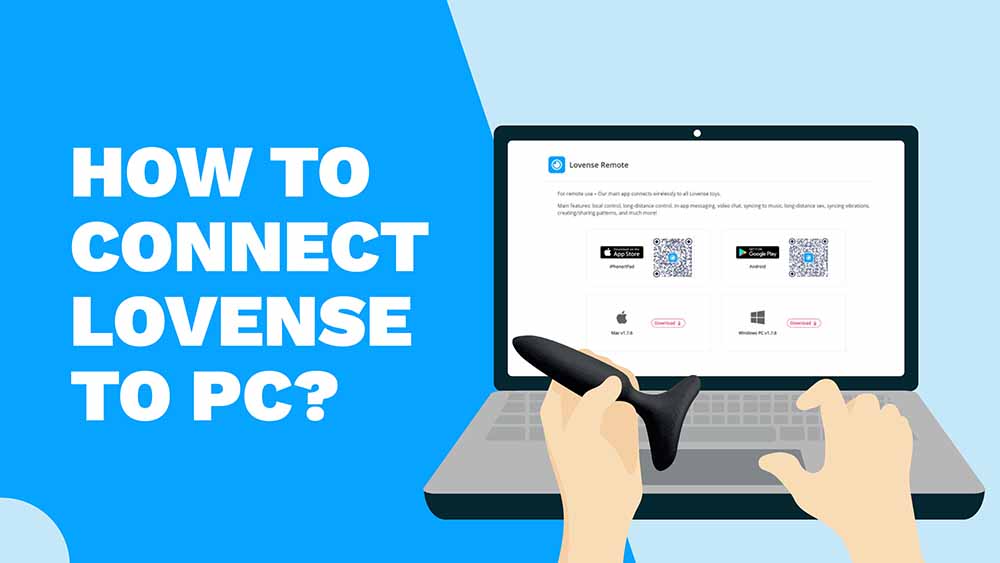
One of the best ways to enjoy your Lovense sex toys is connecting them to your favorite erotic content, or to a play partner’s Lovense sex toys but first, you will need to sync them to your PC (Mac users can read here). This isn’t difficult, but there are a few different steps and we will walk you through them, so get ready!
Key Takeaways
You will need a Lovense account, a Lovense sex toy, and a USB Bluetooth adapter, which is available on the Lovense website. We’re going to install the Lovense Connect app, pair the toy, install the Lovense Cam Extension, and sync everything up.
Create a Lovense Account
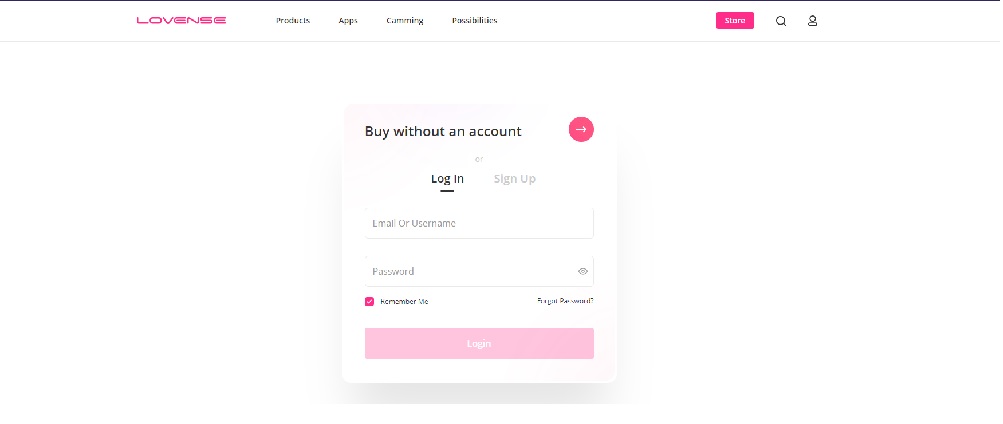
If you purchased your toy directly from Lovense, you likely established an account at checkout and you can use that account to set up the interactive features. If you need a Lovense account, go to the Lovense site, click “Sign Up,” and follow the prompts. They will send an email verification, and once you confirm, your account will be good to go.
Install the Lovense Connect App
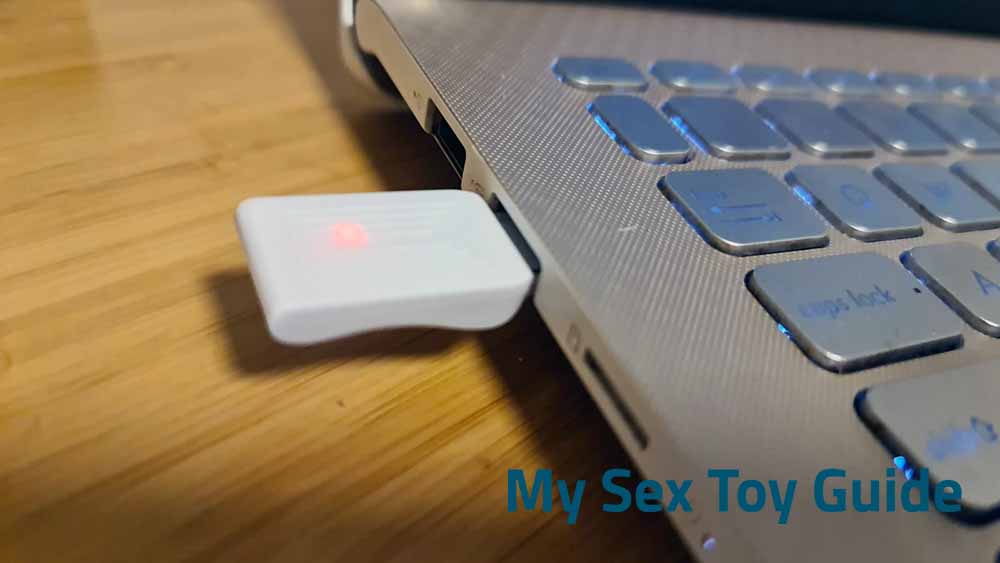
PC users will need a USB Bluetooth adapter, and this is available on the Lovense website for $5. Plug it into an available USB slot on your PC and check to see that the little red light is blinking.
Download the Lovense Connect app directly from the official Lovense website. This will ensure that you get the most up-to-date version (compatible with all the newest features), and it will also ensure that no malware has been added to the file.
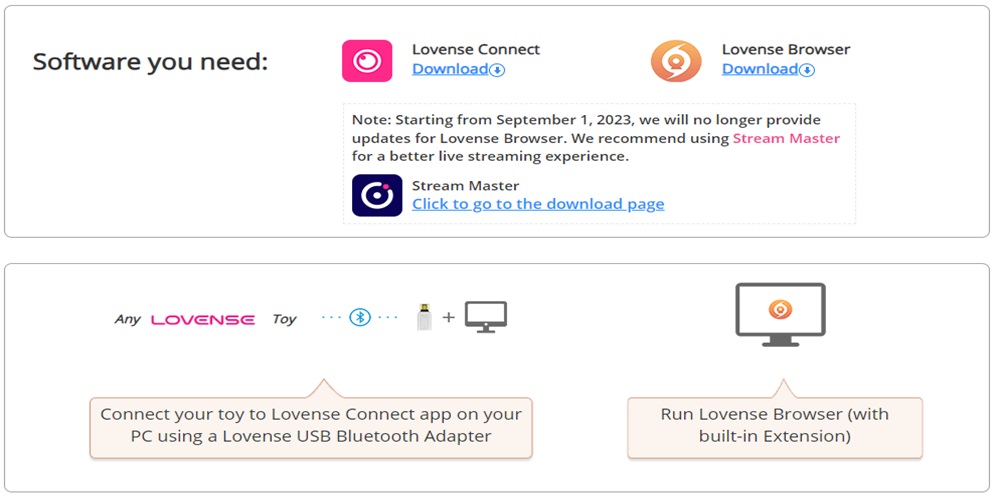
Double-click the Connect app installation bundle and follow the prompts to install the app. The Lovense Connect icon should appear on your desktop; double-click on it to launch the app. It should open with a prompt to connect your Lovense sex toy.
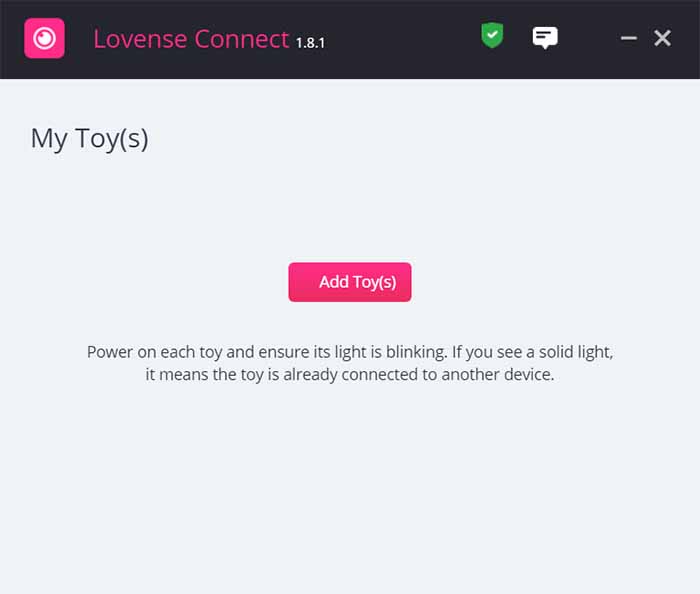
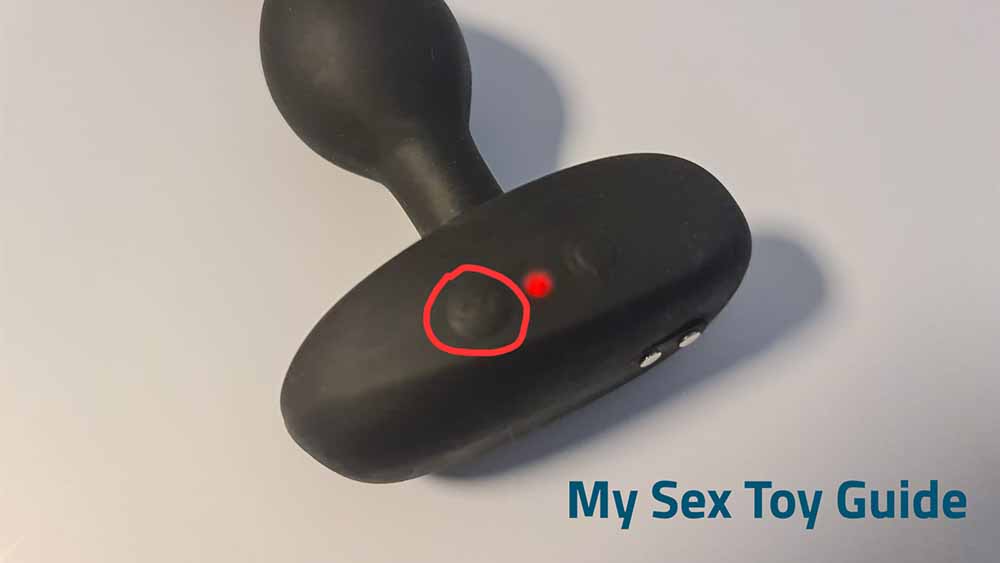
Make sure that your Lovense toy is fully charged, since the pairing process requires a strong signal. Turn the toy on, and press and hold the power button (circled below) for three seconds to activate pairing mode. The red light on the toy should start blinking to indicate that it is in pairing mode.
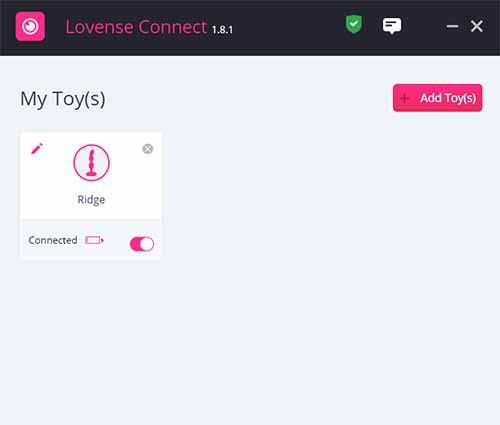
Return to the Lovense Connect app and select “Add Toy(s).” The app will search for your Lovense toy and connect it. When it is successfully connected, the toy will appear on the list in the app. The Lovense Connect app supports multiple toys, so if you are lucky enough to have more than one Lovense sex toy, you can pair them all to the same app.
Install Lovense Cam Extension and Sync the App
Now we will download the Lovense Cam Extension, and again, we recommend downloading it directly from the Lovense website. The extension will arrive as a .zip file. If your system does not automatically unzip it (most will), you can use a free utility like WinRAR to unpack the files.
Locate a folder named “lovense_cam.” This extension works best in Chrome and our instructions and screenshots are from Chrome, but most major browsers should function similarly. Open your browser, open the menu by clicking the three dots in the top right-hand corner, and select Extensions > Manage Extensions.
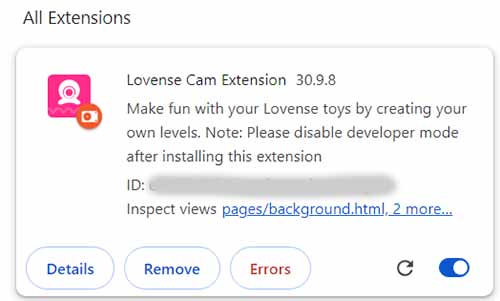
Toggle the switch in the top right-hand corner to enable Developer Mode. Select “Load Unpacked” on the left-hand side and select the “lovense_cam” folder. This installs the Lovense Cam Extension and you should see a confirmation. Lovense recommends that you leave Developer Mode activated for full functionality of the extension.
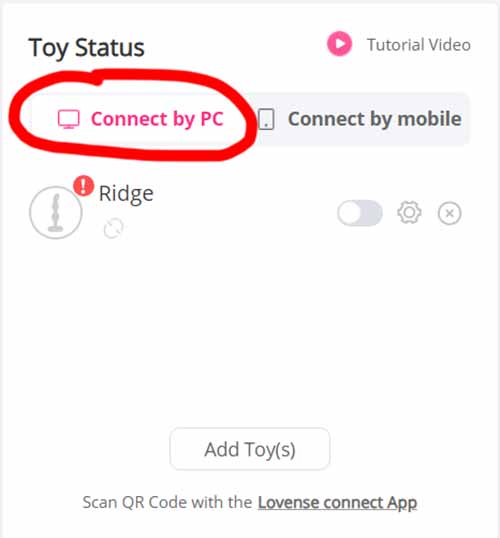
Log into the Lovense Cam Extension with your Lovense account information. Go to Settings and select “Connect By PC” on the left-hand side (circled below). Your accounts should sync and your paired Lovense sex toy(s) should appear on the list.
Troubleshooting Common Lovense Connection Issues
Since you are working entirely in the Lovense ecosystem here, this is usually a pretty smooth process. However, we’ll address some of the most common issues that folks encounter when trying to set up and sync their toys.
Toy Not Connecting: If you don’t seem to be able to pair your toy, make sure that it is fully charged, turned on, and in pairing mode (red light blinking). Also, check that you are within Bluetooth range and that there are no other Bluetooth devices or physical blockers that could interfere. If this does not help, the standard first-line tech support advice is to turn everything off, turn it back on, and try again.
Lovense Connect App Not Working: Make sure that you are using the latest version of the Lovense Connect app, it is correctly installed, and you are using the right account login details. Check the same for the Lovense Cam Extension.
If you are still unable to connect your toy or use the Connect app, you can search for answers on the Lovense website and forums or reach out directly to their support teams.
Happy vibing!
Tim

Reddit | Medium | Amazon
Related Posts


What Is a BDSM Switch? A Complete Guide to Role Versatility
-
Posted by
mediamillion1000@gmail.com


